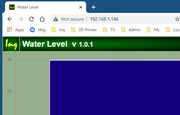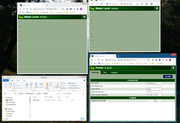
Above, you will find a screenshot of my Windows machine. On it, you'll see three different browser pages open and all connected to an InqWaterLevel that has no extra components connected. Note the address (192.168.137.222). The top two are Google Chrome and Microsoft Edge attached to the gauge page showing an empty tank. As I suspected, if you try to use Internet Explorer, it's a sad day.

The bottom-right is connected to the administration page. Using the instructions in STEP 10
viewtopic.php?f=8&t=28178&start=15#p348696 you can see I have the InqWaterLevel connecting to my local area network... thus I can see the pages on my Desktop even though it doesn't have WiFi. Having it so you can access it from a real computer (instead of your phone) is handy during the build phase or if you want to make changes to the program.
I'd be interested if anyone here on the forum is familiar with web design. Are you familiar (or even an expert) using HTML, CSS and JavaScript to build web pages?
That is all that InqWaterLevel is... is a web server hosting web pages that happen to connect back to the server to get some data. In this case, the quantity of water on your boat. Because of this, it is easy to make modifications to the client side pages. As an example, you might get your WeMos board long before you get all the other pieces needed. Since the WeMos board can be programmed and powered without all those other pieces, we can explore with just WeMos board.
In a dynamic web page, JavaScript is used to make changes to the Browser page. Download this
https://inqonthat.com/wp-content/upload ... /RADOM.zip and unzip the file. On my screen you can see the
index.js file above in Windows File Explorer in the lower left. This is simply a copy of the index.js file that is usually downloaded to update the InqWaterLevel bar graph. I've made a couple of trivial changes to change the color of the bar and to simulate some live data (since the sensors aren't connected).
The question now becomes... how do I make this modified index.js file get used instead of the default index.js file?
- Go to the Admin page: <your address>/admin.html
- Click on the Files tab. Think of this as a File Explorer on the WeMos computer.
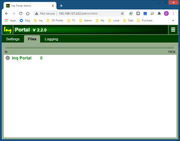
- Now you can simply drag the file from your Windows File Explorer and drop it on the Files screen.
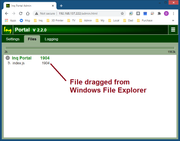
- Now that you've copied this file to the WeMos server, it will be served to browsers instead of the default version. Refresh (press F5) on the browser looking at the gauge page.
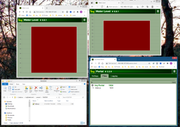
- Once you add the sensor to your project, you'll want to come back to this admin tab and right-click on the file and delete it. Refreshing your browsers again, and they will receive the default version.


 I'm not real familiar with OB... do you have 2 or 4 stroke? Premix or oil injected? Will your viscosity be in the range this thing says it can handle?